For Happier Parents, Healthier Kids
ComputerTime was designed specifically to reduce the aggravation and concern that parents have having over their children’s computer use.

ComputerTime achieves this goal through a number of unique features:
- The kids know how much time they have when they get on the computer.
- The kids know when their time is running out, since ComputerTime warns them at 15, 10, 5, and 1 minute.
- ComputerTime tells the kids when it’s time to get off of the computer. The parents aren’t the bad guys anymore.
It’s the clear expectations that are set up front, and the fairness of the computer that eliminates most of the arguments with their parents.
ComputerTime offers a 14-day FREE trial, so download it today and start enjoying more peace at home.
Read on to learn more about ComputerTime…
Some of the Benefits and Features
ComputerTime will help
- Reduce parental stress and arguments over the computer
- Prevent Internet access when you’re not home
- Share the computer fairly amongst siblings
- Eliminate bedtime arguments
- Limit Internet surfing
- Encourage more reading and exercise
- Improve school grades
- Avoid childhood obesity
- Prevent social isolation
- and more…
ComputerTime Features
- Limit total amount of time per day, week or month
- Time-of-day limits
- Set amount of time at one sitting
- Can customize limits for each day of the week
- Disable children’s computer use entirely
- Separate profiles for each person in the home
- Reward with Time Tokens
- Can configure to share limits across the network
- Password protected (changing limits, creating Time Tokens, or uninstalling)
- Automatic updates over the Internet
Up And Running in Minutes
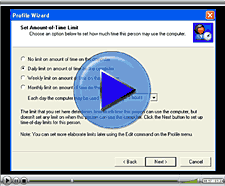
Watch a ComputerTime Demo Video
You can see just how easy by watching the demo video. The simplicity of the Profile Wizard makes it easy to set simple limits, quickly. But ComputerTime has a lot of flexibility in setting various combinations of limits, and having finer-grained control, down to setting different amounts of time and multiple times of the day for each day of the week.
Explore other great features, such as the Time Tokens, the shared limits across the network, and other flexible options, by downloading ComputerTime and trying it yourself, because it includes a 14-day free trial. No risk!
ComputerTime Puts You in Control… It’s So Simple
ComputerTime has been designed for parents like you.
Entering limits is simple, with step-by-step instructions along the way.
You can set different limits for each child.
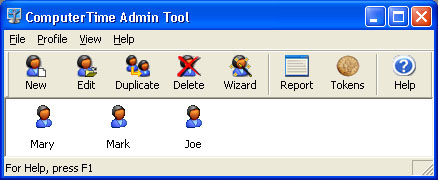
Give additional minutes using the unique Time Token feature.
How ComputerTime Works… It Couldn’t Be Easier
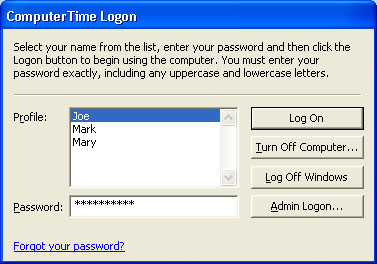
You enter time limits for each child. Your child sees only the
ComputerTime Logon, preventing use of any other program until
they enter their password.
With their limit approaching, ComputerTime displays warning
messages at 15, 10, 5, and 1 minute.
When out of time, the screen is cleared, showing only the
ComputerTime Logon again. Your child may log off at any time
before reaching their limit to save time for later.
ComputerTime runs on:
Windows 10, Windows 8.1, Windows 8, Windows 7, Windows Vista, (32 and 64-bit versions)
Windows Server 2008, Windows XP, Windows Home Server, and Windows 2003 Server
Try ComputerTime for FREE
Download ComputerTime and use for FREE, for 14 days.
See how easy it is to use, and how quickly it restores peace over computer use.